
Books & Tax — your money overview
Income, expenses and supplier bills in one place — sales flow in from your orders, you add the rest, and your GST reports and profit picture build themselves.
5 min readUpdated 21 Oct 2026
In this guide
What Books is, in one look
Books is your money overview — open Books & Tax at the top of the Books & Tax group in your website's menu and everything sits under three simple headings, each tile with a live count (invoices issued, suppliers, bills, and this month's expenses):
1. Sell
Invoices for your orders — made automatically once you turn on invoicing and its Auto-generate switch. Quotations (price quotes your customer can accept online, then convert to an invoice) and your Invoice Settings (business name, GSTIN, logo) live here too.
2. Buy & Spend
Split the way your CA splits it: With GST — claim ITC (Vendors + Purchases) above, Without GST — no ITC (Expenses) below. You add both yourself.
3. File
GST Reports for your CA (GSTR-1, 3B monthly, GSTR-9 annual) and your Profit & Loss — built from the numbers above.
Don't see Books & Tax? The hub, Invoices, Invoice Settings, GST Reports and E-Invoice Setup appear on E-commerce websites (travel and rental websites get Invoices too). Every website — a service or business site included — still gets Quotations, Purchases, Vendors, Expenses, GSTR-2B Reconciliation and Profit & Loss in its Books & Tax group. If you sell mostly across the counter, the CRM has its own bills — see CRM billing.
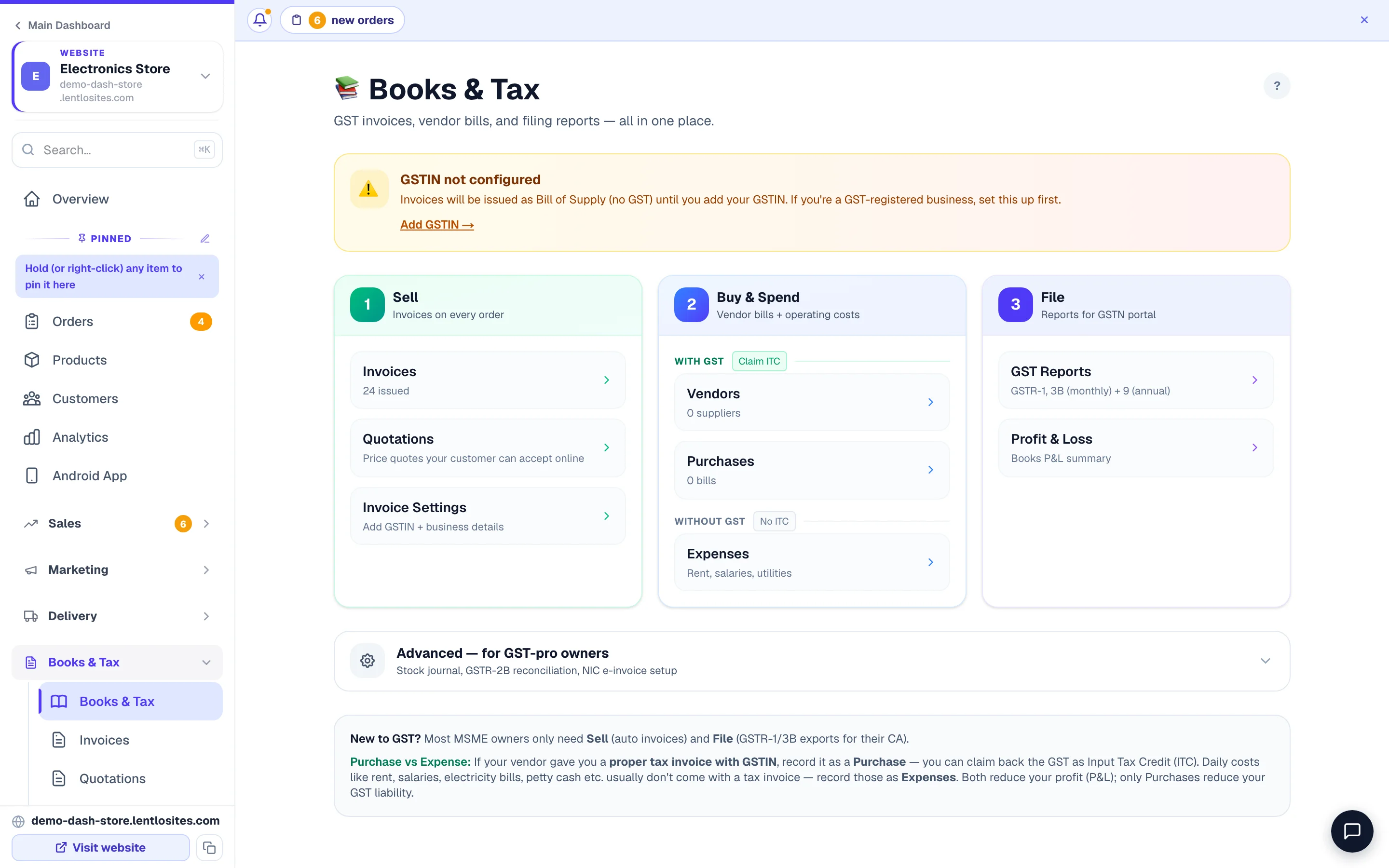
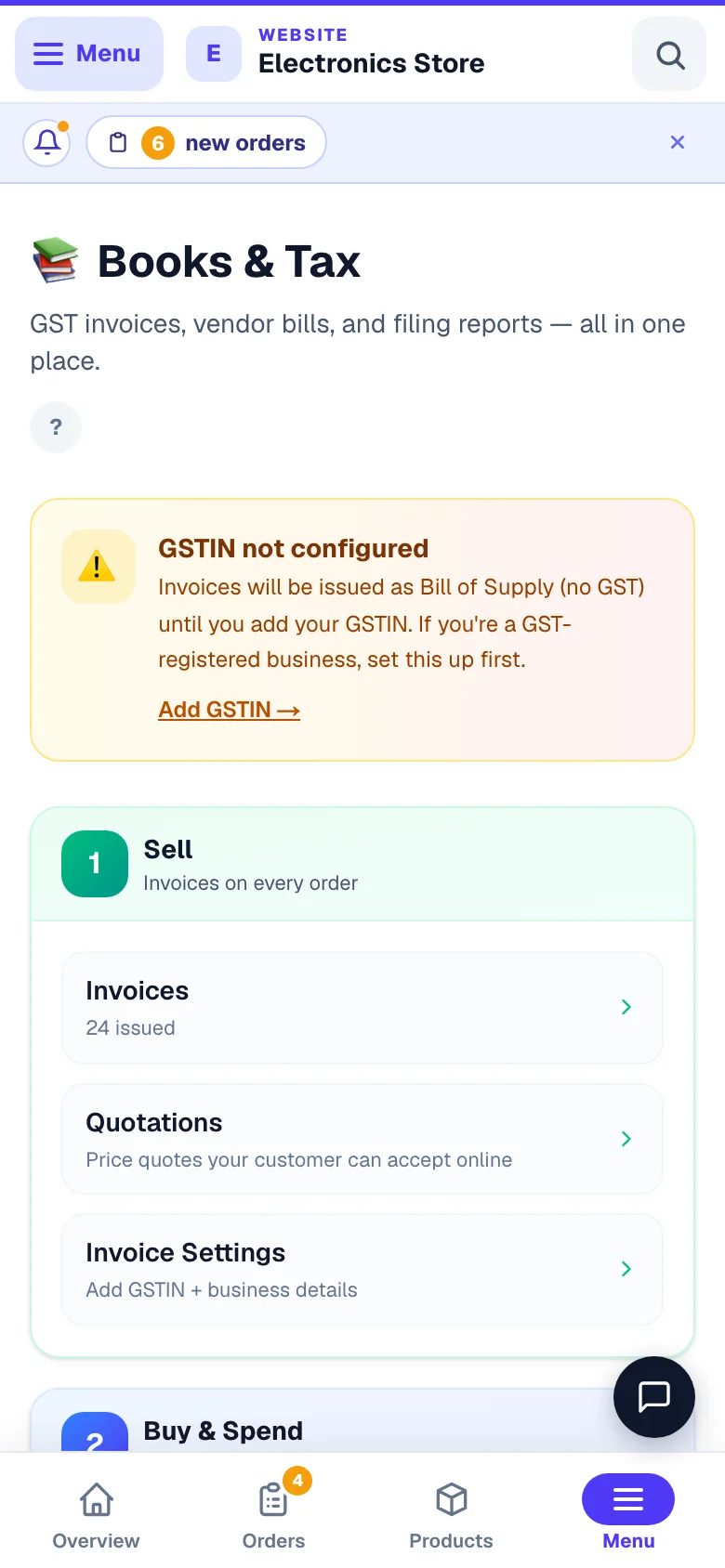
- 1Three groupsWhat you sold, what you bought and spent, and what you file.
Most shop owners only need Sell (it fills itself) and File (download reports for your CA). The more you record under Buy & Spend, the truer your profit number becomes.
What fills itself — and what you add
Books works best when you know which numbers arrive on their own and which ones need a minute of your time.
- Automatic — sales. Every order counts as income on its own — website orders and the ones you add by hand alike. Profit & Loss leaves out cancelled orders; the Sales (orders) tile on the Expenses page also leaves out returned and RTO orders. In Invoice Settings, turn on invoicing plus the Auto-generate switch once, and each order also gets its invoice made for it. See Orders and GST invoices.
- You add — supplier bills. When you buy stock from a supplier who gave you a proper tax invoice with a GSTIN, record it as a Purchase. Save your regular suppliers under Vendors so entry is quick.
- You add — daily costs. Rent, salaries, electricity, packing material, petty cash — record these as Expenses (steps below).
- You add — income from outside the website. Got paid for a service, a commission, or rent? Switch the same add form on the Expenses page to Income — it has choices like Sales Revenue (cash sales off the website), Service Income, Commission, Rental Income and Interest Received — so off-website earnings count too.
Purchase or Expense? A simple test
This one question decides where a bill goes, and it matters for your GST money.
Did the bill come with a GSTIN on it? If yes — record it as a Purchase, and you can claim the GST back (called Input Tax Credit, or ITC). If no — rent to an unregistered landlord, salaries, petty cash, fuel from the local pump — record it as an Expense. Both reduce your profit. Only Purchases reduce the GST you owe.
If you record a GST bill as an Expense by mistake, you silently lose that GST money. The Expenses page shows a gentle reminder about this too — and on Books the two sit under their own headings (With GST · Claim ITC and Without GST · No ITC) so the choice is made for you before you tap.
Adding an expense
Recording a cost takes about ten seconds — do it while the bill is still in your hand.
Open Expenses
From Books & Tax, tap Expenses (under Buy & Spend), then Add (on an empty page, + Add your first expense).
Amount, category, who you paid
Type the amount, tap a category (picked for your kind of business, with Rent, Salary, Utilities and the rest right after — or + Custom), and who you paid. Money you received? Switch the form to Income.
Save — or snap the receipt first
Date (Today / Yesterday) and how you paid, then Save. Have the bill in hand? Open ▸ Receipt photo, repeat, reference, notes and tap Snap or upload — the amount, date and payee fill themselves. Rent and salaries can be set to repeat every month right there.
Made a mistake? Tap the entry to edit; delete has an Undo. Need everything in a spreadsheet for your CA? The CSV button downloads the period you're viewing. The full walkthrough — receipts, repeating entries, insights, the CRM book — is in Expenses.
Reading the monthly view
The Expenses page opens on This month, so you always see the current picture first — switch to Last month, This quarter, This FY (April–March), Last FY, or your own dates with one tap.
- Spent — everything you recorded, with how it compares to the previous period.
- Sales (orders) — your orders in the period (cancelled, returned and RTO left out), plus any income entries you added by hand.
- Net left — earned minus spent, and spend as a share of sales (it reads Net loss when you spent more).
- Repeating / Avg per day — your fixed monthly costs, or your average daily spend.
Tap Insights to see where the money went — categories with their share (is packaging quietly eating your margin?), cash vs UPI vs bank, the trend, and who you paid the most.
The profit card here is the quick view: revenue minus expenses. Your full profit picture — which also subtracts what you paid suppliers for stock — lives in Profit & Loss.
How GST fits in
Books is also where your GST paperwork gets ready — because it's built from the same invoices and purchase bills, there's nothing extra to prepare.
- First, add your GSTIN in Invoice Settings. Until you do, Books shows a GSTIN not configured reminder with an Add GSTIN → link, and your bills go out without GST on them — as a simple Cash Memo instead of a Tax Invoice. Full setup: GST & invoices.
- Filing time: the File section gives you GSTR-1 and GSTR-3B every month (and GSTR-9 for the year) — download and hand them to your CA.
- Claiming GST back: your recorded Purchases carry the GST you can claim. To cross-check them against what your suppliers actually filed, use GSTR-2B reconciliation — it sits with Stock Journal and E-Invoice (NIC IRP) under Advanced — for GST-pro owners, the folded row at the bottom of the page that most shops never need to open.
Not GST-registered? That's fine — skip this section entirely. Expenses, income entries, and Profit & Loss all work without a GSTIN.
Your profit picture
When you want the real answer to "did I make money?", open Profit & Loss under File. It puts all three streams together: sales from orders, minus what your stock cost you (from the cost prices on your products, or your purchase bills — always without the GST part), minus your expenses. The more faithfully you record bills and costs, the more honest that number is. Full walkthrough: Profit & Loss.
More in Payments, GST & books
Did this answer your question?
It takes one tap and it genuinely changes what we write next.