
Getting started with the CRM
Your customer book, follow-ups, billing and customer credit in one place — works even with zero websites, and fills itself from the ones you have.
6 min readUpdated 1 Oct 2026
In this guide
What is the CRM?
Home opens with quick cards — your last invoice, your last quotation (when Quotes are switched on) and your newest customer — each with a one-tap create button, so the next bill or quote is never more than a click away.
The CRM (customer book) is one place to remember every customer and everything about them — so nothing lives only in your head. You don't need a website to use it; it is a full business tool on its own.
Contacts & leads
Every customer and enquiry, with phone, notes and full history on one page.
Follow-ups
Tasks with due dates and phone reminders — today's calls wait on Home with a one-tap done circle; the Follow-ups page sorts them into today, late, the next 7 days and yours. On a tablet a follow-up opens beside the list (so do advances, payouts, cheques, salary lines and purchase orders), so you can read the list while you change it.
Billing & credit
GST invoices, a bill counter for shop sales, and a running who-owes-you-what balance.
One-tap reminders and messages; connect the WhatsApp API for inbox and broadcasts.
Billing and credit have their own guides — see CRM billing & credit and the bill counter. This one covers the basics.
Opening the CRM — it sets itself up
The CRM is already on for every account — there is nothing to install or activate. Click CRM in your dashboard sidebar. The way back out is always the same: Back to Main Dashboard at the top of the CRM menu (on a phone, inside the Menu sheet) — “Main Dashboard” is the name of your account level, where your websites, your businesses and your account settings live. A CRM-only team member sees Sign out there instead, because the CRM is all they have.
First open does the setup for you
The moment you open it the first time, the CRM switches itself on and quietly pulls in your existing website customers, enquiries and bookings in the background — so you arrive to a filled book, not an empty screen.
Tell it what kind of business you run
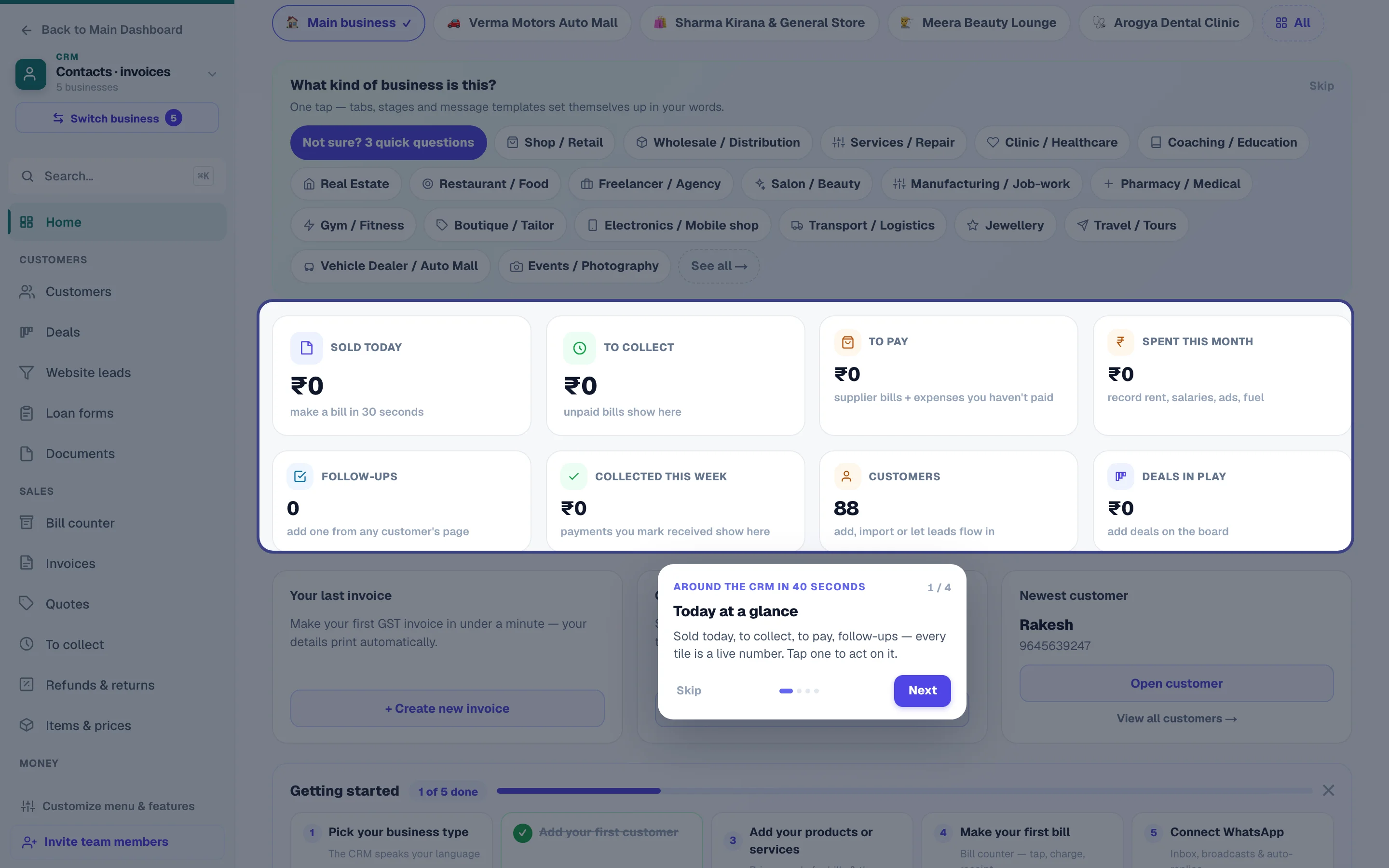
A question appears: “What kind of business is this?” Tap your trade — or Decide later, which changes nothing and asks again the next time you open the CRM (until then it keeps the general setup). More on this below.
Follow the Getting started card
A small checklist walks you through the first five things: pick your business type, add a contact, add your products or services, make your first bill, and connect WhatsApp. It ticks itself off as you go and disappears once you know your way around.
- 1Many booksRun more than one business from the same login — each keeps its own customers and invoices.
Business modes — the CRM speaks your language
A business mode reshapes the CRM around your trade, so a boutique sees “Orders & fittings” where a clinic sees “Patients” and “Treatments”. Pick one when prompted, or any time from CRM → Business type & features. While you hover or tap a type there, the small phone-bar preview on the page shows how the bar reads in that type's words — before anything changes; a switch mid-use asks first and says what moves and what stays.
There are ready-made modes for Shop/Retail, Wholesale, Services/Repair, Clinic, Coaching, Real Estate, Restaurant, Freelancer/Agency, Salon, Manufacturing, Pharmacy, Gym, Boutique/Tailor, Electronics, Transport, Jewellery, Travel, Events and Vehicle Dealer / Auto Mall — plus General, which keeps everything on. A mode changes three things:
Your words
Tabs and headings use your trade's language — parties, patients, students, members, travellers.
What leads
The tabs you use most come first; modules your trade rarely needs step back.
A starter pack
Ready-made pipeline stages, message templates and automations for that trade — seeded only where you haven't made your own.
Switching modes never deletes anything. A mode only re-arranges — and any section that already holds your data stays visible even if the new mode would normally tuck it away. Re-picking a mode never duplicates its starter pack, and it never overwrites stages, templates or fields you customised. Switch freely.
Run more than one business — separate CRMs, one login
Many owners run two shops, or a shop plus a side business. The CRM keeps each one as its own separate book — its own customers, bills, staff and business type — under your single login. Nothing mixes: each book keeps its own invoice numbers, GST profile and reports.
Where the hub lives. With more than one business, tapping CRM in your sidebar no longer drops you into whichever book you used last — it opens the Businesses hub, a card per book with what each is owed and what is due today, and the total to collect across all of them on top. With a single business it goes straight into the CRM, because there is nothing to choose between.
Your businesses now show up as cards, just like your websites: on the main dashboard home you'll see a Your Businesses section (each card shows what's left to collect and tasks due), and with more than one business the sidebar's CRM entry opens the Your Businesses page — every book as a card, with the total to collect across all of them on top. Add New Business opens a picker of 20 business types; choose one and the new CRM arrives already set up — the right screens first, a ready pipeline, reminder templates — with its name and the emoji you picked on the card (change either later from the card's Rename / change emoji menu). Inside the CRM, switching is one tap either way: on today's menus, the chip row at the top of Home; on the new menus (rolling out book by book), tap the business name at the top of the screen — on a computer, at the top of the left menu, or its Switch business button — and pick the one to open; on a phone, Menu → Switch business opens the same list. If the page you are on has changes that are not saved yet, the list asks first — Stay, or Switch without saving — so what you were typing for one business does not end up saved in another. Adding a business now starts with three quick questions — what the business does, whether it bills at a counter, whether it has staff or files — and marks the Recommended type; every other type stays one tap away, and nothing is decided for you. The same “Not sure? 3 quick questions” button sits on the CRM Home until you pick a type. You can keep up to 10 businesses under one login.
One more comfort: in Account settings → Start page you (or any team member, for themselves) can choose where a plain sign-in lands — the dashboard, a website's orders, a specific business's CRM home, or the billing counter. Owners can also set a landing spot for each team member from the Team pages — it's only a landing spot, never a limit.
Operations & Team modules — the full business OS (optional)
Beyond customers and billing, the CRM has a set of operations modules any business can switch on from Business type & features. They stay completely hidden until you enable them, so your CRM stays as light as you want it:
Case files
Department pipelines with statuses, documents and assignment — Finance (loans), Insurance, RTO, Workshop job cards, or a general case file for any multi-step work. Each department numbers its own files (FIN-0001, JOB-0001…).
Staff (HR) & Attendance
Employee profiles with joining dates, targets and salary (monthly or a daily wage); daily attendance with one-tap marking (owner/admin/manager) — every staff member with a login checks themselves in from the Attendance page or the Check-in chip on the CRM home, whatever their role; they ask for leave there too (approved leave marks the register by itself), and Week shows who is in each day.
Salary & payouts
One-tap monthly payroll — worked out from attendance under your own Pay rules (or a fixed salary; with overtime pay, a rule for coming late, and each person's allowances and deductions if you set them), monthly or daily wage, a mid-month joiner or leaver paid for their days — plus commission, bonus, advance and deduction records, each payment recorded with its day, mode and UTR (and un-markable if you tap wrong).
Advances & loans
Money you gave staff, suppliers or anyone, with a repayment plan (a fixed amount every month, week or few days, split into equal instalments, or a share of each month's pay) — a staff advance comes off salary by itself within your limit (half the pay at most — the law, or less in Rules); skip or change any month, pause it, give to several staff at once, print a statement; a supplier's advance can be set off against their bill; a loan repaid by hand can carry interest (on the amount given or on what is still owed), added on each instalment's day; what is still to come, what is overdue, and a write-off with its reason.
Branches & showrooms
Your locations with role-wise contact persons; staff and case files can be tagged to a branch.
Tasks & reminders
The to-do list every automation feeds — plus the Automatic wishes reminders (festivals, birthdays, work anniversaries, your own occasions); ready-made customer birthday and anniversary messages live in Customer messages → Wishes once you switch them on there.
Stock
Inside Items & prices: levels, low-stock alerts, suppliers and the in/out ledger on one page.
Automations that message customers on WhatsApp — from your own number
CRM → Automations turns a trigger into actions: a follow-up task, a tag, a status — and, once your WhatsApp API number is connected, a WhatsApp message from your own number using one of your approved layouts. The triggers cover the whole money loop: a new lead, a contact added, a deal moving stage, a quote accepted or declined, an invoice issued, an invoice fully paid, an invoice overdue (checked once a day, sent once per invoice) and a recurring payment or renewal falling due — memberships, AMCs, fees.
Every {{slot}} of the layout is filled from what the trigger knows. Type words or tap a placeholder chip: {name}, {first_name}, {phone}, {business} always; {invoice_number}, {amount}, {amount_due}, {due_date} on invoice triggers; {plan} on renewals; {stage} and {deal} when a deal moves; {quote_number} and {response} on quotes. A live preview shows the message with sample values. Recipes written for your business type come first under Suggested for …; a rule's switch shows green while it is on. The library offers ready layouts written for each trigger — your business mode's own first (a gym's membership renewal, a clinic's report-ready, a repair shop's device-ready) — and a layout you don't have yet opens the WhatsApp hub's Templates tab pre-filled for submission. Three recipes get you started: Invoice sent → WhatsApp it, Overdue → polite reminder, Renewal due → reminder. The same placeholders work in task titles (“Collect {amount_due} from {name}”).
A follow-up task from a rule can go to your team members, in turn (Give the task to → Team members, in turn) — handy for sharing new enquiries fairly; see Hot leads and sharing enquiries.
Books with case files also get file triggers — a file changing status, a file pending too long, a loan moved to Loan closed and, with Vehicles switched on, a vehicle document expiring (road tax, fitness, PUC, insurance, permits). Each is offered only where that department is switched on, so a salon never sees them. Their placeholders: {file}, {status}, {reg}, {vehicle} and {amount}; {days}, {agent} and {agent_phone} when a file waits too long; {closed_on} on a closed loan. The status always reads in the file's own words — an RTO NOC file never says “RC transfer completed”.
A rule can also send the customer an update — the standard update for what happened, or words you write. It waits in Customer messages for one tap, or goes out from your WhatsApp API number when that switch is on. The trigger A WhatsApp update to a customer could not be sent lets a rule make a follow-up task when one fails.
A message goes only to a contact with a phone number who hasn't replied STOP; at night it waits for your business hours (quiet hours in the WhatsApp hub). A website enquiry that reaches your CRM more than two days after it was made still arrives as a lead and still gets its tags and follow-up tasks, but never an automatic WhatsApp about it. An enquiry that came in on WhatsApp is already in a live chat with you, so a new-lead rule makes its follow-up task and tags for that person but does not send them a layout on top. Every send appears in the hub's History with the values used and the estimated Meta charge — the CRM itself never adds a fee.
Vehicle dealers get the whole flow pre-wired. The Vehicle Dealer / Auto Mall mode turns these on and seeds an automatic workflow: when a deal is marked Vehicle booked, a Finance file opens by itself; when the loan is marked Loan disbursed, the Insurance file and the RTO file open together; completing RTO opens a Workshop pre-delivery job card; and finishing the workshop step creates the delivery task with a congratulations message ready to send. (A book that picked this mode earlier keeps its own chain — Finance done → Insurance → RTO — untouched.) Each new file stays linked to the one it came from: the customer, the vehicle and the people on the file carry over, the loan's bank fills the RTO file's hypothecation financier, and the loan amount is read live from the Finance file — the loan agent is never copied in as the RTO or insurance agent. A file already open for the same customer and vehicle is never opened twice, and marking a loan Loan closed years later never restarts the chain. Every link of the chain is an ordinary automation you can edit or switch off under Automations.
Each department page has an auto-assign setting — the Auto-assign & priority button at the top of the page (on a phone it sits in the ⋯ menu) — pick which team member new files land with, and they'll see their queue the moment the workflow opens one.
Files that wait too long get a follow-up by themselves. Every case file counts its days pending — from its start date (or the day it was added), stopping when it is finished or rejected, and pausing while it sits On hold — and shows a priority: Normal, then Medium, High and Critical at 30, 60 and 90 days (change the days for each department under Auto-assign & priority). In a Vehicle Dealer book this is on for Finance, Insurance and RTO: a file still being worked when it reaches Medium, High or Critical gets one follow-up for the person new files of that department go to, with the file's agent and their phone in the note; when five or more files of one department reach the same level on the same morning, they arrive as one list instead of five tasks (make that 3, 10 or 20 under Many files on the same morning). The very first check only sums up what is already behind — one summary per department and level. A file that is approved, disbursed, issued, rejected or finished never gets one. Any department of any business can switch it on or off under Auto-assign & priority.
Home — your morning screen
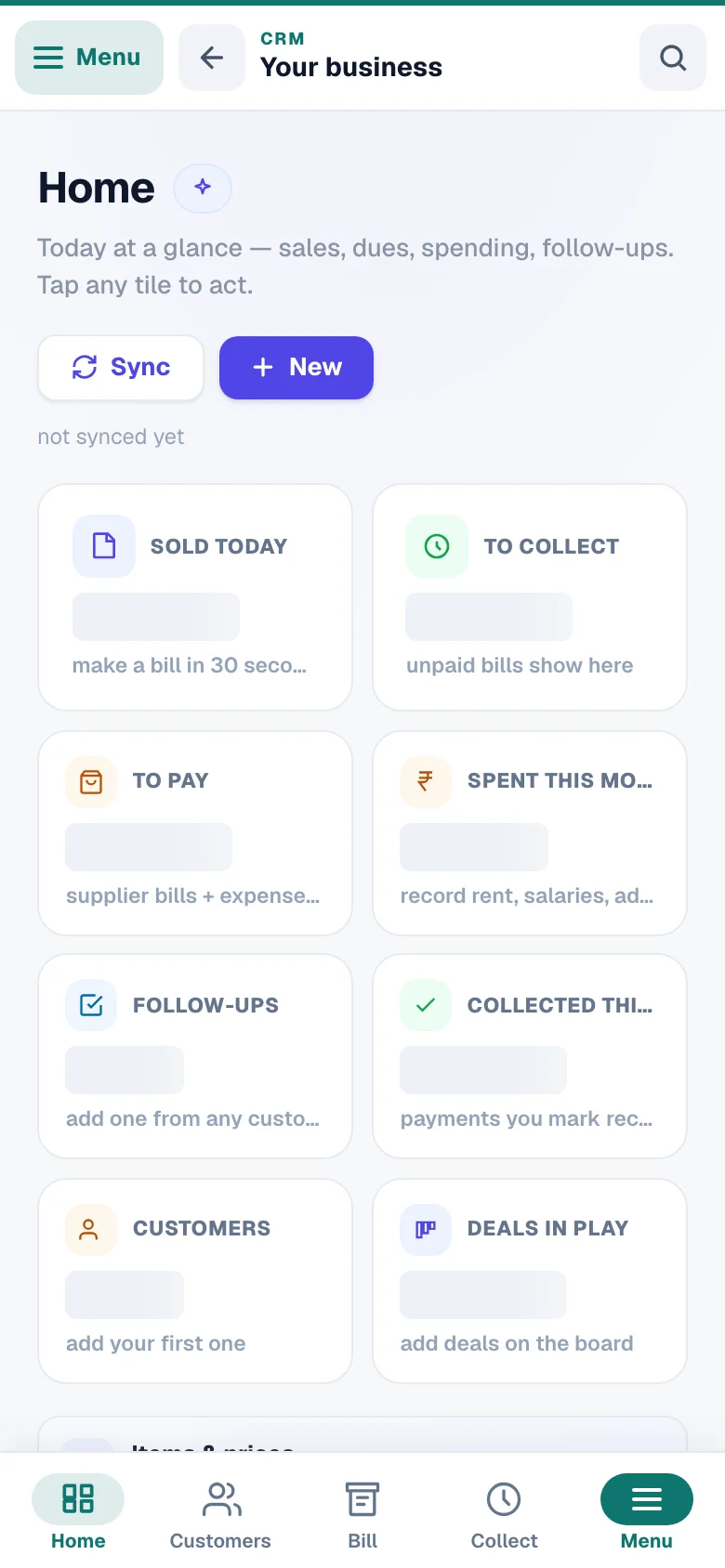
Home is the first page of the CRM and the one worth opening every morning: it shows the money and the work that need you today. It arrives in one go, so the tiles never jump around while the numbers load. What's on it:
- Four lead tiles, picked by your business type — a shop leads with Sold today, To collect, To pay and Follow-ups; a dealer, a clinic or an agency with its deals in play; a coaching centre or a gym with the fees due this week. A number that could not be read this time shows “—”, never a made-up ₹0. With Money records switched on, Payouts due, Money due and Cheques to deposit appear after the other tiles under More numbers for logins with Mark payments received.
- More numbers — everything else in one line you can open: spent this month, collected this week, customers, low stock and, for GST-registered books, GST to pay (this month) — sales GST minus purchase credit; tap it for the full math on the GST page.
- Today · follow-ups — what is due by this evening, the late ones first, each with a one-tap done circle and a five-second Undo; when two or more departments have follow-ups due, they are grouped by department (See all opens the rest of that department's list), and All follow-ups opens the page. The Follow-ups tile says how many are overdue — or, when none are, how many are due later today. If you switched Follow-ups off and none are open, the tile reads Turn on follow-ups and takes you to Business type & features.
- Payments to collect — overdue invoices with a WhatsApp reminder button per row.
- Recent customers — the latest people in your book (in your business's own word — patients, students, members…).
- Sync — pulls your latest website customers and enquiries right now instead of waiting for the automatic sync.
A new Home is on its way. Books move to it one by one; yours changes on its own when the rollout reaches it, and nothing you have set up moves. The new Home is built around your business type: four tiles named in your trade's words (a clinic sees Under treatment, a coaching centre Fees due and Classes today, a distributor Outstanding and To dispatch, a salon Due for a rebook), a Today line for shops (billed · spent · to collect), and cards below that follow your type — Who owes you / Payments due (the oldest unpaid bills, with Remind beside a customer's bill), Today's follow-ups (Mark done, for those who may, with a five-second Undo), occasions this week, quotes waiting, classes today. What is still to collect is always on the page: a tile, the Today line, or a To collect chip under More numbers. A brand-new book asks one question first — What does your business do? — and then shows Your next step: three small steps with a ring that fills as you finish them. The ··· menu on a card offers Hide this card to the owner and to a manager with Operations, and Show hidden cards at the end brings one back. The line under the title says when the numbers were last updated, with Refresh beside it. The ✦ button beside Home starts the walkthrough (a new book's Your next step card offers it too); it never starts by itself. The tiles are the same boxes before and after the numbers load, so nothing jumps.
From anywhere in the CRM, press Ctrl+K (or ⌘K on Mac) to search everything and jump straight to it — customers, deals, bills and quotes, files, vehicles, items, staff, follow-ups, banks, agents and partners, and payments, each under its own heading. Type a name, a phone number, a bill or file number (INV-0042, FIN-0007), a plate (CG04SU0001), a UTR or an amount; what you typed decides which group comes first. It only lists what your login may open. Every list in the CRM has its own search box too, and it reads every word on a row — an amount (6400 or ₹6,400), a day (3 aug, 3/8), a status (unpaid, pending), a phone with or without spaces.
Customer messages — ready to send, never assumed sent
Customers → Customer messages holds the WhatsApp messages the CRM prepares for your customers — an update when a file changes step, a wish you switched on, a message you wrote on a customer's page. Its How Customer messages work card walks through one message from Prepared to Sent. When something is waiting, Home shows a Messages to send card with the count; with nothing waiting there is no card. Sending takes two steps: Open in WhatsApp opens the message in your own WhatsApp, ready to send, and when you come back Did it go? asks you — only It went marks it sent, so the history never shows a message as sent that you did not send. When a WhatsApp API number is connected, the owner can let messages go out from that number by themselves. History on the same page lists everything prepared and sent, with Sent today: N at its head, and Settings holds the switches and the words of every message — each section says its state in one line and folds its explanation under How this works.
Contacts vs leads — one book, two kinds
Everyone lives in Customers; the difference is simply how far along they are. A lead is someone who enquired but hasn't bought yet; a customer is someone who has. On the Customers page, Filters → Show (All / Leads / Customers / Archived) works each group. The phone number is the identity — one number, one person, with their whole story on a single page — so when a lead later buys, everything still lands on that same contact. For adding, importing and merging people, see Contacts & leads.
Your website feeds it automatically
If you run websites here, you never re-type a customer into the CRM — they flow in on their own. Every 15 minutes (or instantly, with Home's Sync button) the CRM pulls in:
- Store customers — people who ordered on your website arrive as customers.
- Form enquiries — contact-form submissions arrive as leads; each enquiry is also listed under CRM → Leads.
- Bookings — appointment bookings arrive as leads too.
The sync is careful with your work: it never overwrites a name or note you edited, and it never brings back a contact you moved to Trash on the strength of old history — only a new order, booking or enquiry from their number, made after you trashed them, brings them back (with a note on their timeline saying which website did). Only entries with a phone number sync — the phone is how the CRM recognises the same person everywhere. When the same person enquires again, no duplicate is created — a "New enquiry" note lands on their timeline, and your automations can react to Existing lead enquires again separately from brand-new leads. Leads can also arrive from outside your website (IndiaMART, JustDial, any form) through your lead-capture link under CRM → Websites & lead capture.
Each website chooses which business it feeds. If you run more than one business in the CRM (say a bakery and a catering service, each with its own website), open CRM → Websites & lead capture: every website is listed with the business its customers go to — blank means Main business. Tap Change, pick the business, and choose whether to bring in the website's past customers (all of them, from a date, or only new ones). The dialog prints the real numbers and exactly what will happen before you confirm; WhatsApp order alerts then go out from that business's number. Switch a website off if you never want its enquiries in any CRM (a spam-prone landing page, for example). Nothing here deletes data, and every change is listed under History.
Moving a website between businesses. When a website already brought customers into one business and you point it at another, the dialog asks what to do with them: keep them where they are, move them to the new business with their notes, tags and tasks, or remove them to Trash. Customers with invoices, payments on record, deals, case files, vehicles or class enrolments in the old business are never removed — a copy of their card goes to the new business instead — and customers who also came from another website, or were added by hand, stay too. Invoices, payments, balances and deals never move. Every move or removal has an Undo in History that puts the customers back exactly — a note, task, message or saved date comes back only from where the move left it, so one that has since been merged into another customer there (Find duplicates) or moved on to yet another business stays where it is now, and the Undo tells you how many stayed put; the website keeps sending new customers wherever you pointed it. Removing a whole business from the CRM sends its websites back to Main business, and the business itself can be restored from Removed businesses at the bottom of Your Businesses. From a business's menu you can also choose Open this by default, so the CRM opens on that business instead of Main. Under Advanced in the same dialog, a website's form enquiries and car-sell requests can go to a different business than its orders — each person still lives in exactly one place. When you connect a website, the business's GST identity (legal name, GSTIN, PAN, address, state) fills itself from the website's Business Info wherever the CRM field is empty; the Business profile page has a Copy from website button for the same thing.
You decide what flows in. The same page has a "Rules for all websites" panel: switch any source off (store customers, form enquiries, bookings, car-sell requests), pick a from date so old history stays out, or switch to Manual so nothing arrives until you press Import now on a source — each row shows how many entries are waiting. Turning a source off just pauses it; nothing already in your CRM is removed.
Team members — staff work the CRM, not your login
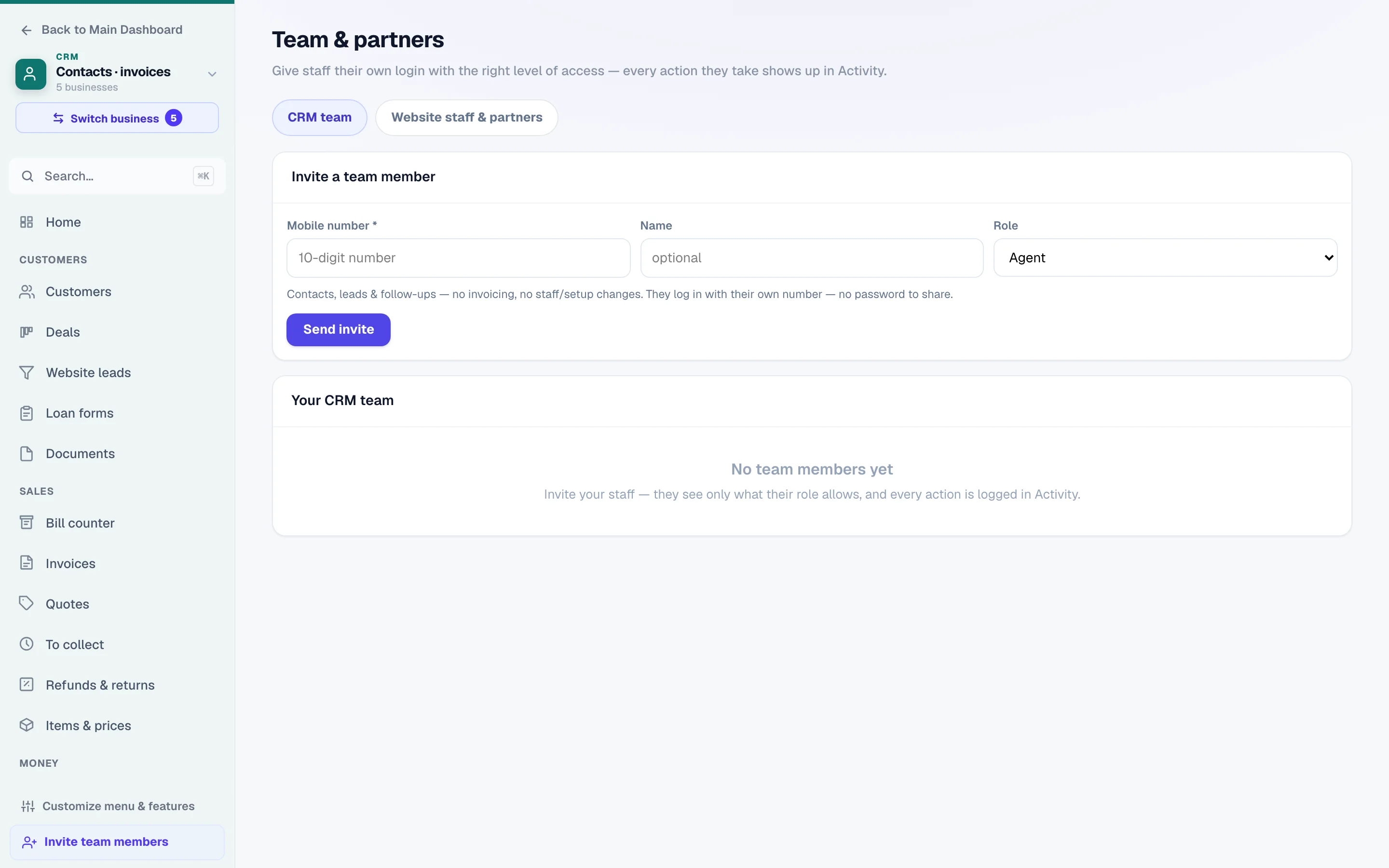
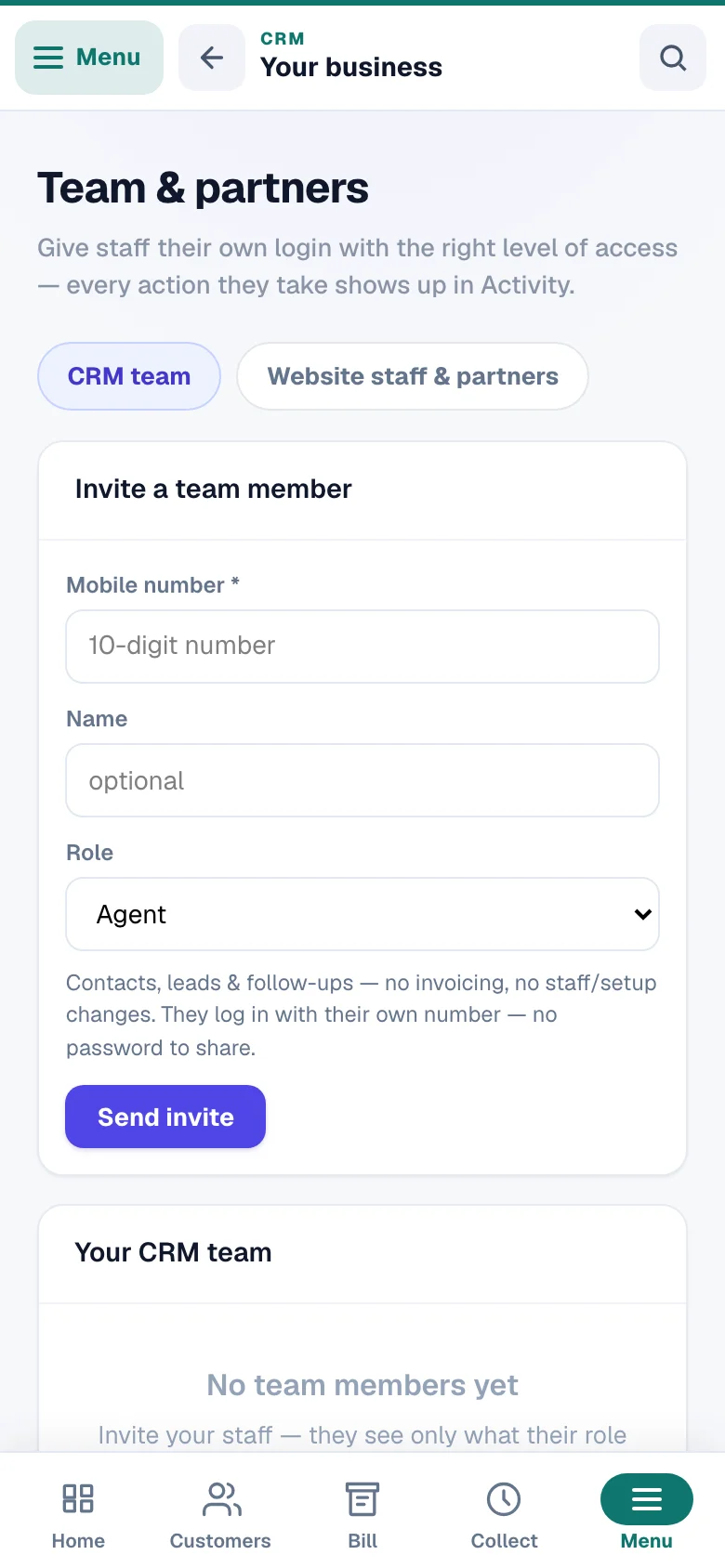
You shouldn't have to hand your phone (or forward your OTP) to whoever manages the counter. Invite staff into the CRM from CRM → Team — they sign in with their own mobile number, never your login.
Invite by phone number
Tap Invite, enter their mobile number and a name, and pick a role — each role is a card that says what it can and can't do (Agent is picked to start with). Then tell them where to sign in with that number: the same sign-in page you use — or, if your dashboard lives on your own domain, yourshop.com/admin; on an agency's portal, that portal. Your invitation is the first thing they see after the OTP: an Invitations screen with Accept & open, and one tap puts them straight into your CRM. Until they tap it, their row in your Team list says Waiting to accept, and Share invite on that row sends them the sign-in message through WhatsApp or SMS (on a computer it copies the message). A number that has never signed in before creates its account on the way — nothing to set up for them, and nothing to pay. The Invitations screen shows them what they will and won't be able to do before they accept.
Keep a staff profile for them under CRM → Staff (HR) with the same mobile number and it connects to their login the moment they accept — they can then mark their own attendance and see their own profile.
Pick a role — fine-tune if needed
Admin can do everything except manage the team; Manager handles contacts, leads, invoicing and staff operations but can't confirm payments or export data; Agent works contacts and follow-ups only; Viewer is read-only. Two more ticks, See care alerts and See private notes, are on for every role except Viewer — they decide who sees a customer's care alerts (allergies, skin or medical facts) and the fields you marked private; untick either for a person who should not. Each permission can be individually switched on or off per person. Confirming payments and exporting your data stay owner/admin-only by default; “Manage staff, attendance, branches & setup” is off for Agents, so a salesperson can never edit your employee roster, mark someone else's attendance or change your company setup — and that setup includes your automations, deal stages, custom fields, message templates, WhatsApp settings and lead-capture rules (an Agent can read them, not change them); sharing a bill's public link needs “Create invoices & quotes” or “Add & edit contacts, notes, tasks” (a Viewer cannot), and cost prices on the Stock page show only to people with the invoices permission; and managing the team — along with switching your business type and permanently erasing a customer — is always yours alone (a team member can move a customer to Trash, which can be undone for 7 days). Cancelling a payment plan stops new dues and reminders (a due whose date is still ahead, with nothing received and no invoice, is skipped — the confirmation names it) but never writes off what is owed — every due that has fallen due stays on the customer's balance until it is paid, or until someone who may mark payments received presses Write off unpaid dues on the cancelled plan. Bring back the written-off dues on the same plan makes them owed again — until the plan is removed from your list, which makes the write-off permanent.
Suspend or remove any time
One tap suspends a member; Remove asks first, then their access stops immediately. On a phone these sit under the ⋯ on their row. Everything anyone does is recorded in the CRM's Activity log, under their own name.
Payout details stay with the people who pay. A referral partner's PAN, bank account, UPI and usual payout % are shown — and can be added or changed — only by someone who can confirm payments; everyone else sees the numbers masked (••••1234) and no payout %, so nobody can quietly swap the account a payout goes to. The same goes for the referral payout % on a loan file: only someone who can confirm payments sees it or changes it.
When you are the one invited — working inside another business's CRM — the Team page shows only that business's name and a way back to your own CRM: adding or removing people there is always its owner's job, and inviting someone into your CRM happens from your own CRM's Team page. On a business's own website address (their /admin), their CRM is the only one you work in there. An invitation waiting for you also shows as a small 1 invite pill on the CRM entry in your sidebar.
Activity — who did what, tracked
CRM → Activity is the record of everything anyone does in your CRM — invoices issued and cancelled, payments marked, contacts added or deleted, exports, settings and team changes — each with who, when, the before → after of every edited field, and the device it came from.
- The dashboard on top: actions in the period (vs the previous one), people active, money moves, Needs a look (deletions, exports, cancellations, access and settings changes), field changes, phone vs computer — plus activity by day and by hour, by area, and a Who did what table per person (actions, last active, what they mostly do, how much from a phone, risky actions, distinct networks).
- One line on top: the period chip (Today · 7 days · 30 days · This month · Last month · All time · Custom dates — a sheet on a phone, the chips side by side on a computer), the Filters button and the ⋯ menu (Refresh · Download CSV for Admins · Activity settings for the owner).
- Filters opens one sheet with everything: Views (the one-tap views and your saved ones), People (a team member — "You" is your own trail; Support and Your provider are shown by role, never by personal name), Areas (Contacts, Invoices, Payments, Expenses, Staff…), Show (Needs a look · Money only · With changes), Device (Phone · Computer) and Search (an invoice number, a name, a network address). A tap applies at once; the filters you applied sit as chips under the line — tap a chip's × to take it off, Clear for the whole picture back. Rows read as sentences — "Ravi issued invoice INV-0042 · ₹12,500 · Ravi Traders" — and link straight to the document; a row's Network shows the address behind it.
- Salary and payroll amounts are hidden from anyone without Mark payments received access, in this log too.
- Every website has the same console — open a website → Settings → Activity log to see who changed a price, cancelled an order, edited a page or invited staff on that site. It sits on the owner's own menu; staff don't see it. Full guide: Activity log.
- Needs your attention — when someone other than you deletes, exports, cancels, revises, merges or changes access or settings, it shows at the top of Activity and as a red strip on Home (“3 risky actions by someone else — see who did what”); if you installed the dashboard app on your phone with notifications on, it also pings you the moment it happens (one ping per burst — a bulk delete of 40 is one alert ×40). Tap Show to see the trail, ✓ to dismiss. Only you (the owner) see and clear alerts — a manager can't silence an alert about their own action. Your own actions never alert you.
- Views (in the Filters sheet) — one-tap filters (Needs a look · Money moves · Deletions · Team today · From phones) plus your own: set any filters, name them under Save this view. Saved views are shared with everyone who can open Activity.
- Activity settings (owner only, under ⋯) — Team members see: everyone's activity (default) or only their own — admins and managers always see everything; and the alert switches (in-app, push to phone).
Finding your way — the menu, in plain words
The left menu (and the phone's Menu button) is grouped the way you think about your business, not the way software is built:
- Home — today at a glance in four tiles picked by your business type: a shop sees sold today, to collect, to pay and follow-ups; a dealer or an agency sees its deals, follow-ups, to collect and customers; a coaching centre or a gym sees the fees due this week first. Every other number — spent this month, collected this week, low stock, GST to pay and, with Money records on, payouts due, money due and cheques to deposit — is one tap away under More numbers. Tap any tile to act. + New at the top makes a bill, invoice, customer, expense, payment, quote or deal from anywhere (on a phone it opens from the bottom of the screen).
- Customers — the people: customers & suppliers, follow-ups, customer messages, website leads, documents, and Visits when switched on in Business type & features (who went to which customer, when, and what happened — Customer visits).
- Work — the work in play: deals, and — when your business uses them — the file desks (finance, insurance, RTO, job cards), vehicle records and classes.
- Sales — what you sell and bill: Bill counter, Invoices, Quotes, To collect, Refunds & returns, Items & prices.
- Money — what comes in on a schedule and what goes out: Recurring payments, Money records (payouts, statements, cheques and salary payments — when switched on in Business type & features; the vehicle-dealer type switches it on for new books), Expenses, Supplier bills (with Purchase orders — order from a supplier, then turn their bill into a supplier bill in one tap), Sales reports, GST report.
- Team & operations — Team & partners, Activity, and the optional staff/attendance/payroll/branches modules.
- Setup — business profile, message templates, automations, lead capture, integrations, import, custom fields — and Business type & features, where everything above is yours to arrange.
Every part has its own colour. The small tile beside each page's title — and, on the new menus, the menu's icons — wears the colour of the part it belongs to: Customers blue, Work fuchsia, Sales violet, Money olive green, Team & operations pink, Setup grey, Home your action colour. The file desks keep their own colours (finance indigo, insurance teal, RTO amber, job cards sky). A glance tells you where you are; these colours never mean paid, due or overdue — those keep their own green, amber and red.
Most pages open with a How … works card — the steps in order and one worked example made by the same rules the page runs on: Team (what a Manager and an Agent may each do), Automations (a lead at 10:30 pm gets a task due 12:30 am that reminds at 9 am), Message templates, Deal stages (a ₹40,000 deal at 50% counts ₹20,000 in Expected revenue), Import & export (undo for 7 days), Duplicates, Custom fields, Website leads, Websites & lead capture (an enquiry that reaches the CRM 48 hours late never WhatsApps the customer), Sales reports, Credit notes (₹11,800 bill, 2 of 10 chairs back = ₹2,360 note), GST (₹20,000 on sales − ₹11,000 credit = ₹9,000 to pay), Activity and the ID cards page. The card starts folded so the page never jumps; on a page that is still empty it wears a blue ring — tap it for the steps and the example, any time.
Nothing you switched off disappears with your records. A row you switched off that still holds records stays in the menu, dimmed, at the end of its group — “Switched off · 12 records” — and one tap takes you to Business type & features to switch it back on (it shows for whoever may change the menu). Follow-ups never hide while one is open, even if you switched that row off.
Make it yours. Business type & features lets you pick your business type (which renames rows to your words — patients, students, members…), switch any row on or off, order the rows, and choose the phone's bottom bar: Home plus up to three buttons you use most (say Bill · Customers · To collect for a shop, or Deals · Customers · Invoices for an agency). Everything else stays one tap away under Menu.
On the new menus (rolling out book by book — your book may still be on today's): the phone's Menu folds Setup into one Setup · N row — tap it to open the rows, with Customize menu inside; Help stays below it, always visible. A + at the bottom right of Customers, Follow-ups, Invoices, Quotes, Items, Deals, Expenses and Staff opens that page's own Add — the same as the button at the top. If the phone loses its connection, a line under the header says You're offline — showing what was loaded and goes the moment it is back.
Show me around. Every main page has a small ✦ button beside its title — a 30-second walkthrough that points at the two or three things that matter on that page. Home runs it once on your first visit; Help & guide lists them all so you can replay any of them.
Team members see less, on purpose. A member's menu shows only what their role can use: a Viewer's Setup group is just Help, an Agent doesn't see Business profile or Business type & features, anyone who can't create invoices doesn't see the Bill counter, and + New (and every Add / New / Download button) offers only the things they're allowed to do — a Viewer sees a customer's open follow-ups without Add, and Documents offers Remove only to a login that may edit customers. Almost nothing ends in "no permission".
A sheet with changes you haven't saved asks before it closes. Pressing ✕ (or Escape, or tapping outside) on a form you changed shows Close without saving? right at the top of the form — Keep editing takes you back to save, Close without saving drops the change. Nothing you only looked at ever asks: a form you opened and left as it was closes straight away.
Words you'll see. We use plain English everywhere: Credit is what a customer owes you (what some call khata or udhaar), To collect is your unpaid invoices, Supplier bills are purchases with GST you can claim, Expenses are day-to-day costs without a tax invoice.
Common questions
Quick answers to the doubts owners raise most when they first open the CRM.
I don't have a website — can I still use this? Yes, fully. Contacts, follow-ups, billing, credit and team all work with zero websites. The website sync is a bonus, not a requirement.
Will switching business modes lose my data? No. Modes only change words, tab order and starter content. Nothing is ever deleted, and sections holding your data stay visible.
Does customer money pass through us? Never. CRM billing shows your UPI and bank details; customers pay you directly and you mark it received. See CRM billing & credit.
My website customers aren't showing up. Tap Sync on Home. If someone still doesn't appear, check they have a phone number — entries without one can't sync.
Where do WhatsApp broadcasts and auto-replies live? In the WhatsApp hub, which works hand-in-hand with your CRM contacts — see WhatsApp API hub.
More in CRM, WhatsApp & AI
Did this answer your question?
It takes one tap and it genuinely changes what we write next.