
Create discount coupons (advanced)
Percentage, fixed ₹ or free-shipping codes with rules — online payment or COD only, delivery or pickup, start date, minimum items, new/returning/signed-in/selected customers, products and categories in or out, days and hours — plus cashback, checkout cards and apply-automatically offers.
Watch0:489 min readUpdated 21 Oct 2026
In this guide
- 1New offerStart from a ready-made offer instead of a blank form.
Some products can opt out: in a product’s Who can buy & how much section you can switch on “No coupons on this product”. Coupon codes then skip that item — the customer still gets the discount on everything else in their cart, and a percentage coupon is calculated only on the items it’s allowed to touch. A coupon can also leave products out by itself — see Never on these products below.
Creating a coupon
A coupon is the fastest discount you can run — create a code, share it, and customers type it at checkout to see the price drop at once. Use one for a festival sale, a welcome offer, or a thank-you for regulars.
Open Coupons
In your website's menu open Marketing → Coupons (the same page is a tile on your Manage page). Click Create at the top right — or Create Coupon when you have none yet.
Pick the code
Short and memorable — WELCOME20, DIWALI500, FREEDEL. Up to 20 characters; whatever you type becomes capital letters. At checkout the code matches whether the customer types capitals or small letters.
Set the Type and the value
- Percentage (%) — e.g. 20% off. Worked out on the items total, before GST and shipping.
- Fixed Amount (₹) — e.g. ₹100 off. Never more than the cart total (no negative bills).
- Free Shipping — the delivery charge becomes ₹0; product prices stay as they are. Your shop checks the coupon itself, so this can't be faked from the browser.
Limits and dates (optional)
- Minimum Order (₹) — e.g. only when the cart is at least ₹999.
- Maximum Discount (₹) (percentage coupons only) — stops a big cart from getting a runaway discount.
- Starts on — prepare a festival coupon today and it starts working on the date you pick. Until then a customer who types it reads “This coupon starts on 20 Oct — try it then.” Leave empty to start now.
- Expires On — the coupon stops working after this date. Leave empty for no expiry.
- Note shown to customers (optional) — one line in your own words, up to 120 characters (“Only on prepaid orders above ₹499”), shown under the coupon at checkout and on its checkout card.
- Total Max Uses — a hard limit, e.g. "first 100 only". Leave empty for unlimited.
- One-time per customer — the same phone number can use the code only once on your shop. Most welcome offers want this.
- Active — on by default. Off means nobody can use the code, but it stays in your list to switch back on.
Create → share
Press Create Coupon (it reads Update Coupon when you edit one). Copy the code by tapping it on its card and share it on WhatsApp, Instagram or SMS — a WhatsApp broadcast is a one-click way to reach all your customers. The usage count on the card ticks up as orders use it. If you run an influencer program, an influencer can have a code of their own (made by Auto-create discount coupon when you add them — check its discount, see the warning in that guide) so every sale through their code counts toward their commission.
Quick-start presets
Presets are ready-made coupons for the most common promotions — under Quick Start (optional) on the create form, pick one and the fields fill themselves with sensible values you can still change.
- Welcome 10% (WELCOME10) — new customers only, 10% off, maximum ₹500 discount, one-time per customer.
- First Order ₹100 Off (FIRST100) — flat ₹100 off for new customers on orders of ₹499 or more, one-time per customer.
- Weekend Special (WEEKEND15) — 15% off on Saturdays and Sundays only, maximum ₹300 discount.
- Happy Hour (HAPPY20) — 20% off, valid 6 PM to 9 PM India time, maximum ₹200 discount.
- Free Shipping (FREESHIP) — free shipping on orders of ₹999 or more.
- VIP / Loyalty (VIP250) — flat ₹250 off, one-time per customer, minimum order ₹1,499.
Three reward modes — discount, cashback, or both
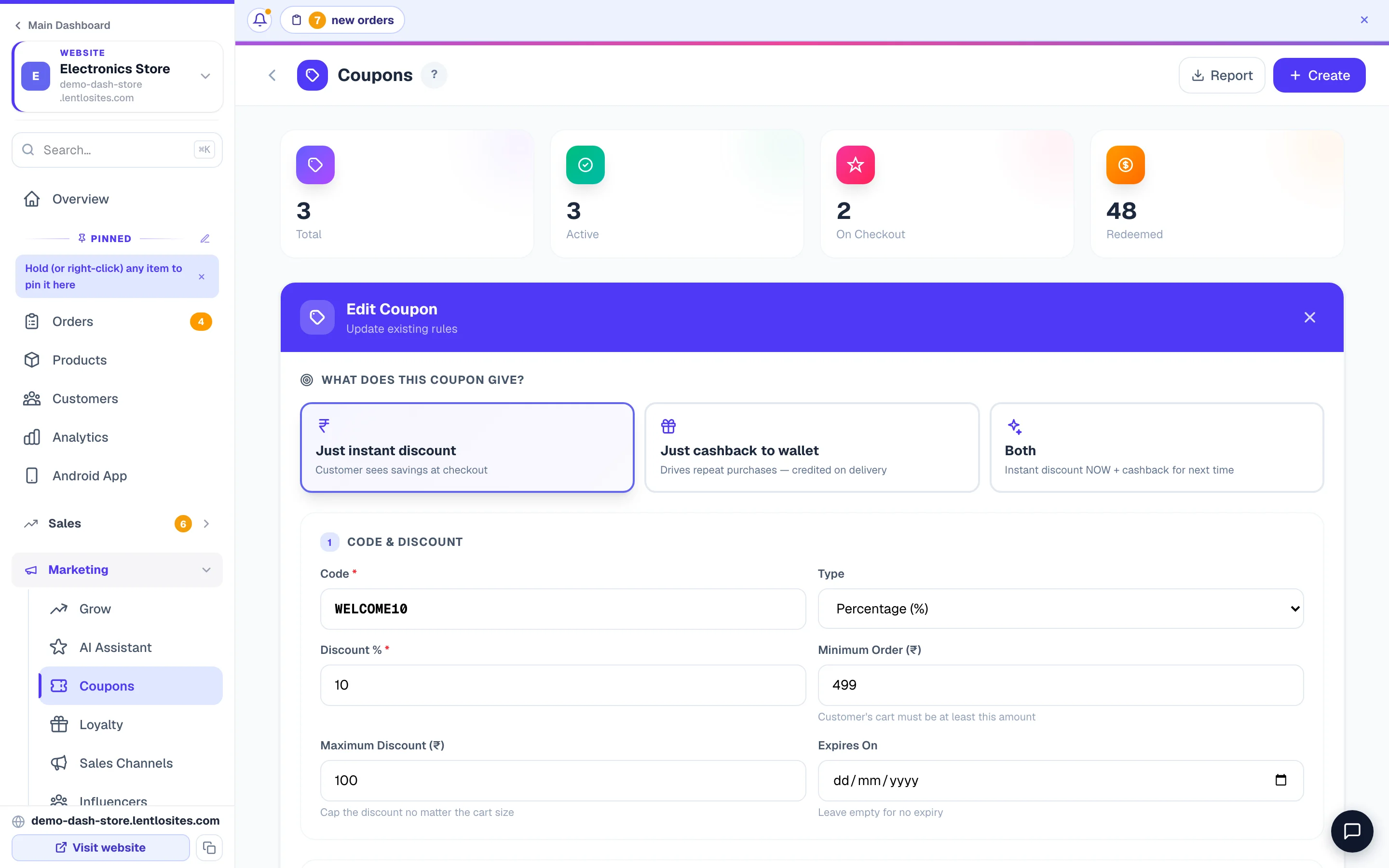
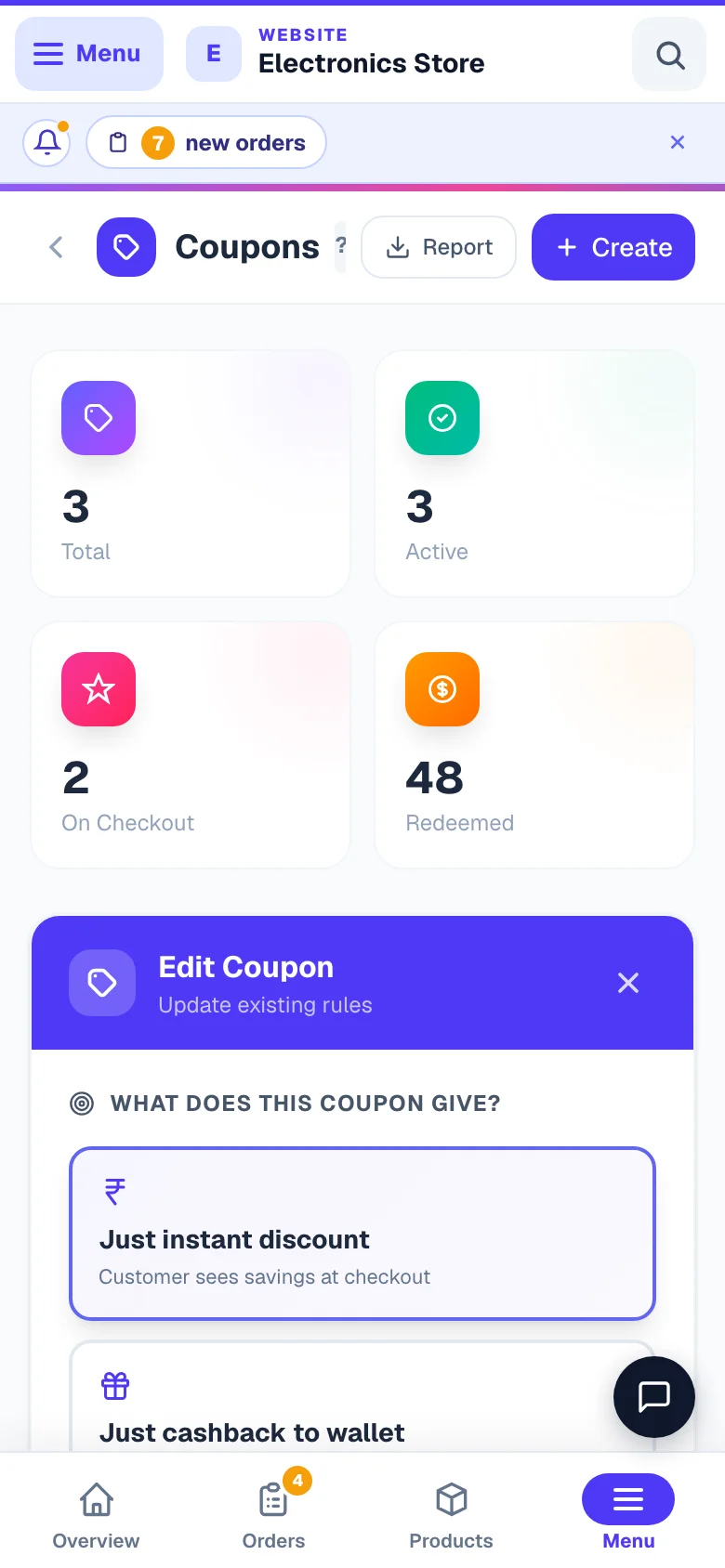
The first choice on the create form — "What does this coupon give?" — is what your coupon actually gives the customer. An instant discount wins the sale today; cashback brings the customer back for the next one.
- Just instant discount — most common. The customer sees the saving off the bill at checkout: percentage, fixed ₹ or free shipping.
- Just cashback to wallet — no instant discount. The customer pays full price, and money is added to their store wallet after delivery, for use on the next order.
- Both — instant discount NOW + cashback for next time: "WELCOME10 — 10% off now + 5% cashback for your next order".
Every rule on the form, explained
Below the code, the form has numbered sections: Usage Limits, Customer Eligibility, Payment & Delivery, Product & Category Restrictions, Time Restrictions and Stacking. Every rule is optional — leave a field empty and it simply doesn't apply.
Usage Limits
- Total Max Uses — a limit across all customers (e.g. "first 100 redemptions only"). Empty = unlimited.
- Max Uses Per Customer — e.g. "each customer can use this 3 times". Counted by phone number, cancelled orders not counted.
- One-time per customer — the same phone number can use this code only once. While it is on, the Max Uses Per Customer box is greyed out.
- Show on checkout and Apply automatically — both explained in their own sections below.
- Minimum items in the cart — counts every unit: “3” means three pieces of anything. With fewer, the customer reads “Add at least 3 items to use this coupon.”
Customer Eligibility
- New customers only — your shop looks for earlier non-cancelled orders from this phone number. If there are any, the coupon is refused with "This coupon is only for first-time customers".
- Welcome bonus — the checkout applies it by itself, like Apply automatically below. Switch on New customers only too so only first orders get it, and Show on checkout (see below) so the offer also appears as a card.
- Returning customers only — the opposite of new customers: works from the customer's second order (a thank-you for coming back). A coupon is for new OR returning customers, never both — the switch is greyed out while New customers only is on.
- Signed-in customers only — the customer must first sign in with an OTP on their mobile number (“Sign in with your mobile number to use this coupon.”), so the number the limits are counted on is a proven one.
- Only these customers (mobile numbers) — type 10-digit Indian mobile numbers, one per line or separated by commas (up to 200). Anyone else reads “This coupon is for selected customers only.” The check runs on the number typed at checkout, so for a strict check also switch on Signed-in customers only. Leave it empty for everyone.
Payment & Delivery
- Way of paying — Any payment (default), Online payment only (UPI, card, net banking, the UPI QR, the shop wallet) or Cash on Delivery only. The most used rule in India: a prepaid-only coupon cuts returned COD parcels. Partial COD counts as Cash on Delivery. An order request that the customer pays later (when you confirm orders first) is neither, so a coupon tied to a way of paying does not apply to it.
- Delivery or pickup — Both (default), Home delivery only or Store pickup only (a collect-from-store offer).
- The checkout keeps checking. A customer who applies a prepaid-only coupon and then picks Cash on Delivery sees the coupon come off at once, with the reason and an Apply PREPAID5 again button (with your code in it) for when they switch back. The same happens when they change delivery to pickup, type a different phone number, sign in, or change the cart — the coupon is checked again every time, so the discount on screen is always the discount the order will carry.
Example · Sharma Sweets, Jaipur
Code PREPAID5: Percentage 5%, Maximum Discount ₹100, Way of paying Online payment only, Apply automatically on. A customer with a ₹1,250 box of kaju katli picks UPI — the checkout shows “Applied for you” and ₹62.50 off. She switches to Cash on Delivery — the coupon comes off with “This coupon works only when you pay online (UPI, card or net banking) — choose an online payment to use it.” She goes back to UPI and taps Apply PREPAID5 again; the ₹62.50 comes back. On a ₹3,000 order the saving stops at ₹100.
Product & Category Restrictions
- Apply only to these categories — tap category chips to select. The discount only counts items in those categories (a product qualifies if any of its categories is selected). If you use subcategories, parent categories appear as chips too (even before any product sits in them directly) — picking a parent covers everything nested under it. Empty = all categories.
- Or specific products — a searchable product picker with photos. Search, tap products to select, or use Select all … matching to pick everything the search found. Useful for clearance ("20% off these 5 items"). Empty = all products.
- Never on these categories / Never on these products — the opposite of the lists above: items you pick here take no part in the coupon (their value is left out of the discount, and a cart of only such items is refused with “This coupon doesn't apply to the items in your cart.”).
- Exclude sale items — items already showing a cut price (original price higher than the selling price) are skipped. Stops a sale price and a coupon stacking. If everything in the cart is on sale, the coupon is refused.
The section shows only once your shop has products.
Time Restrictions
- Active days of week — tap day chips to pick when the coupon works. Empty = all days. Example: Sat + Sun for "Weekend Special".
- Active from (IST) / Active to (IST) — an hour window in India time. Set both together. Overnight windows work:
10 PM → 2 AMcovers late-night orders. No restriction = all day.
Stacking with loyalty points
- Stackable with loyalty points is on by default, and customers can use this coupon AND redeem their loyalty points on the same order — both savings show as separate lines at checkout.
- Switching it off saves the choice and puts a Not stackable pill on the coupon's card, but today the checkout does not act on it: customers can still use points together with that coupon. To limit how much points can cover on any order, set Protect your margin (the % of each order a customer can pay with points) on the Loyalty page's Program rules tab.
Show on checkout — promote a coupon without sharing the code
Normally a customer must know your code. Switch on Show on checkout (Instamart-style) (in the Usage Limits section) and the coupon appears as a tappable card above the "Have a coupon?" box at checkout. One tap on APPLY applies it; no code to remember. Use it for the offer you want everyone to get.
- The coupon must be Active (the switch is greyed out otherwise) — expired or fully used coupons drop off the checkout by themselves.
- At most 12 cards show. One of them wears a ★ Best badge — a percentage coupon is picked over a fixed ₹ one, then the bigger number.
- A card shows only public facts — the code, the saving, the minimum order, the expiry, short chips for the rules (Pay online, Cash on Delivery, Home delivery, Store pickup, Min 3 items, From 20 Oct, Sign in to use) and your note. Never your usage limits, your list of numbers or the cashback settings. Tapping a card goes through the exact same checks as typing the code.
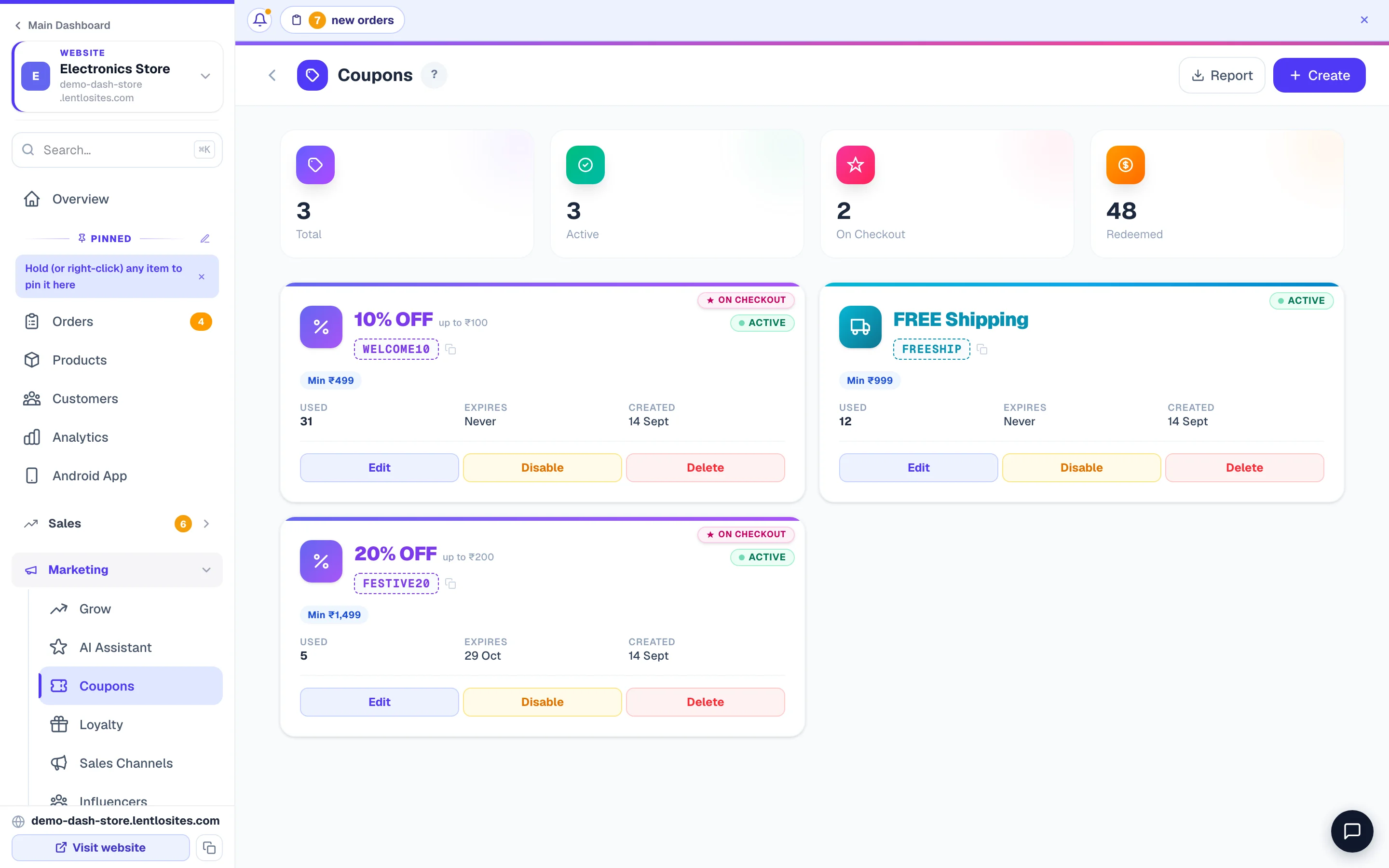
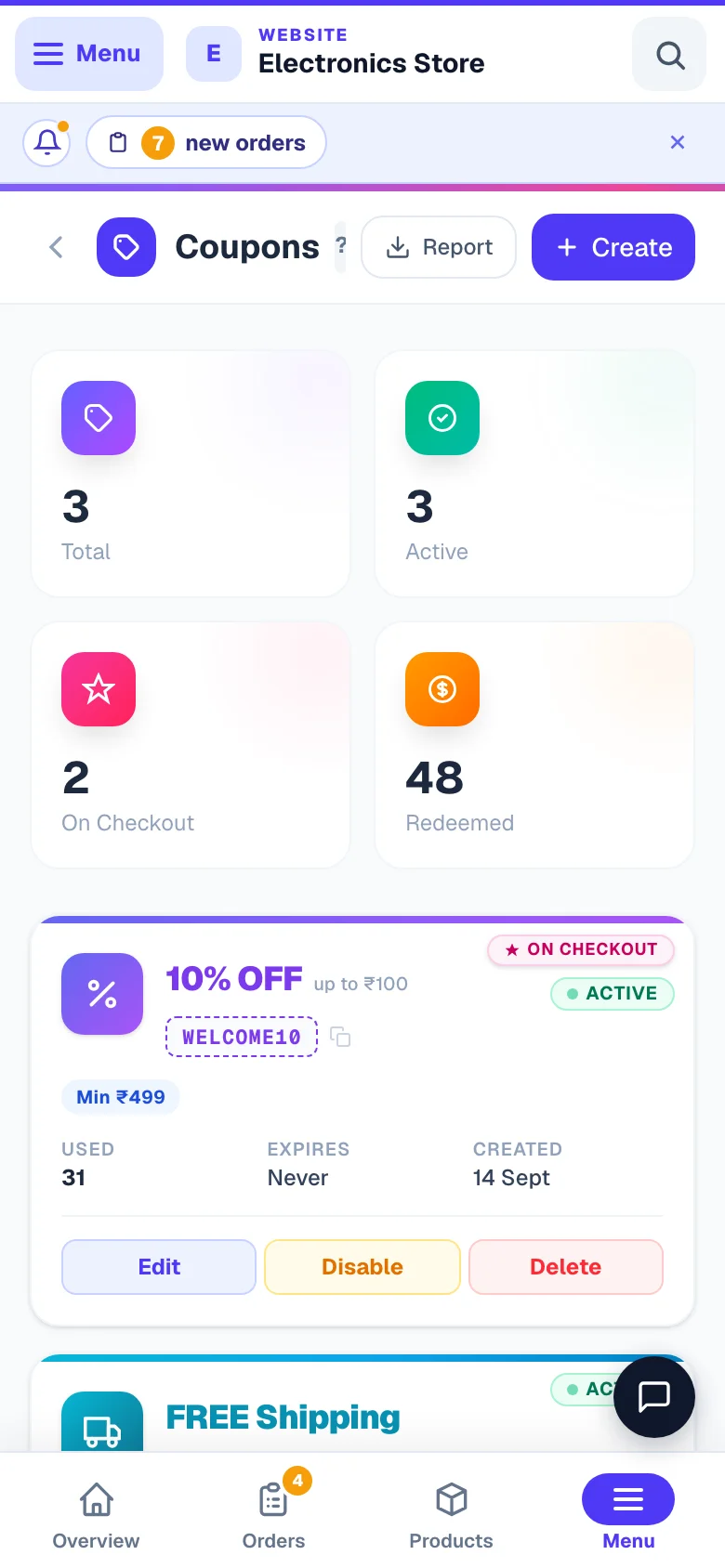
- On your Coupons list, promoted coupons carry a pink On Checkout ribbon in the card's corner, the On Checkout counter at the top of the page shows how many you have, and an On checkout filter pill puts them together.
- Show your offers on the home page too: the same switch fills the Offers board block — add it to any page in the website editor (Page sections) and it shows these coupons as tap-to-copy cards. With no such coupon, the block hides itself on your live website.
Apply automatically — the best offer with no code
Switch on Apply automatically (just below Show on checkout) and the checkout applies the coupon by itself whenever the order qualifies and no other coupon is on — the customer sees “Applied for you — the best offer for this order” under it. With several automatic coupons the customer gets the one that takes the most off; a free-shipping coupon is picked only when no discount coupon fits. Every rule above still counts (a prepaid-only automatic coupon appears only once an online payment is picked), and a customer who removes it is not offered it again in that visit.
- The coupon must be Active. A Welcome bonus coupon applies itself in the same way.
- A cashback-only coupon never applies by itself — it takes nothing off the bill, so there is no “best offer” to show. Share its code instead, or show it on checkout.
Cashback — money back to the customer's wallet
Cashback rewards the customer with store credit instead of an upfront discount — they pay full price today and get money in their store wallet to spend on the next order. It's the strongest repeat-purchase tool a coupon has.
- Percentage (%) cashback — e.g. "5% back" → on a ₹500 order they get ₹25 in their wallet.
- Fixed Amount (₹) cashback — e.g. "₹100 back" whatever the order size.
- Maximum cashback (₹) (percentage only) — e.g. "5% back, at most ₹200".
- Cashback expires after (days) — a per-coupon override of your shop's wallet expiry. Common: 30 days for urgency, 60 for festive (Diwali), 90 balanced, 365 Flipkart-style. Leave empty to use your wallet setting from Wallet settings.
Wallet must be enabled on your site for cashback to credit — the form links straight to the wallet settings (Check wallet settings →). With the wallet off, delivered orders simply get no cashback.
- When does cashback credit? Only after the order is marked delivered — for every payment method. If the order is cancelled before delivery, no cashback was ever given.
- The wallet's maximum balance still holds — if the cashback would take the customer's wallet above the maximum set in your wallet settings, no cashback is added for that order.
- Reversal — if a delivered order is later cancelled, the cashback is taken back from the customer's wallet automatically. If they already spent it, only what is left in the balance is taken (money already spent can't be pulled back — the wallet never goes negative).
- Where they see it — the credit shows at once in My Wallet on your website, with the new balance (e.g. "₹50 cashback — balance ₹550"). No WhatsApp message is sent for it.
- Combo with discount — pick "Both" for instant discount + cashback together. The cashback is worked out on the items value after the discount (GST, shipping and items marked “No coupons on this product” left out).
- Not on orders you type in yourself — a cashback coupon is refused on a manual or cloned order, on purpose: an order you created for a customer must never create wallet money out of thin air. Use an ordinary discount coupon there, or add the credit from the wallet page where it is recorded as your decision.
Switch a coupon off, change it or delete it
Each coupon's card has three buttons at the bottom:
- Disable / Enable — stops the code at once for new checkouts (and takes it off the checkout cards), or brings it back. Its usage count and rules are kept.
- Edit — opens the same form with everything filled in; save with Update Coupon.
- Delete — asks “Delete this coupon permanently?” and removes it for good. Orders that already used it keep their discount.
You can also tell Asha in the dashboard chat — “coupon DIWALI20 band kar do” or “make a 10% coupon FESTIVE10 for 7 days”. She shows a card with exactly what will change, and nothing happens until you confirm. If the coupon's form is open on your screen, it shows the new on/off state at once.
Real-world examples
Recipes you can copy straight into the form — each is just a combination of the rules above.
- Diwali festival: 15% off, maximum ₹500, Starts on 25 Oct, Expires On 5 Nov.
- Prepaid push: 5% off, maximum ₹100, Online payment only, Apply automatically — every customer who pays online gets it by itself; the moment someone picks Cash on Delivery it comes off with the reason.
- Collect from store: 10% off, Store pickup only — the customer saves the delivery charge and you save the courier.
- Bulk buy: ₹150 off, Minimum items in the cart 6 — “buy any 6, save ₹150”.
- Cart recovery: ₹100 off, one-time per customer, minimum order ₹999, expires in 7 days — mention it in your abandoned-cart WhatsApp message.
- VIP comeback: ₹250 off, Only these customers (your 30 best buyers' numbers), Signed-in customers only — share personally on WhatsApp.
- Thank-you for coming back: 10% off, Returning customers only, one-time per customer.
- New product launch: 25% off — restrict to specific products (the new arrivals only).
- Everything except groceries: 10% off, Never on these categories = Groceries.
- Tuesday slow-day boost: 10% off, days = Tuesday only.
- Lunch hour deal (cafe/bakery): 15% off, 12 PM – 3 PM IST.
- Repeat-purchase nudge: 5% cashback, no instant discount. The customer pays full price now and gets 5% in the wallet on delivery — they come back to spend it.
- Welcome combo: 10% off NOW + 5% cashback, new customers only, one-time per customer — and Show on checkout so first-timers can't miss it.
Security — why customers can't cheat the rules
Every rule you set is checked again by your shop when the order is actually placed — not just when the code is typed — so a discount can never be tricked out of your shop.
At order time your shop re-checks everything: the customer's order history, the way of paying, delivery or pickup, the sign-in, the day and time, the products in the cart, the usage limits — and works out the discount itself. Nothing from the customer's browser is trusted. Only one coupon applies per order, and the usage counter can never go past a Total Max Uses limit, even when two customers grab the last slot at the same second. Each refusal shows a clear message ("This coupon is only valid on: Saturday, Sunday", "You have already used this coupon", "This coupon works only with Cash on Delivery." and so on).
Changing a coupon while someone is paying? If you switch it off, let it expire, raise its minimum order or move its start date after a customer has reached the payment page, their order still lands with the discount they paid for — the order's timeline carries a note saying what changed. The coupon stops for the next customer, never for money already taken.
Creating an order yourself? On a manual order you can apply any of your active coupons as a business decision. The customer rules are skipped for you — new or returning customers, once per customer, Max Uses Per Customer, signed-in, selected numbers — and so are the way-of-paying and delivery/pickup rules. Everything about the coupon itself still holds: its expiry and start date, Total Max Uses, the minimum order and minimum items, the days and hours, and the product and category limits. Cashback coupons are the one exception: they can't be used on manual orders (wallet credit must come from real online sales).
Coupons on travel and vehicle-rental websites
On a travel or vehicle-rental website the same Coupons page gives discounts on bookings. Only discount coupons work there (percentage or fixed ₹) — cashback and free-shipping coupons are refused, and a rental's security deposit is never discounted. “Once per customer” counts the customer's earlier bookings, a use is counted only when the booking is confirmed, and bookings you enter yourself never take a coupon.
Seeing usage
The Coupons list is your scoreboard — it shows at a glance which offers are working and which rules each code carries, so you know what to extend and what to switch off.
- The four counters at the top — Total, Active, On Checkout and Redeemed (all uses added up).
- Used counter — each card shows "Used 12/100" with a progress bar when there's a limit, plus the Expires and Created dates. The corner pill reads Active, Inactive, Expired or Maxed (every use taken).
- Rule pills — every rule shows as a small badge (Min ₹500, New customers, Returning customers, Auto-apply, Online payment only, COD only, Delivery only, Pickup only, From 20 Oct, Min 3 items, Sign-in needed, Not on 2 products, 1 per customer, Max 3/customer, Sun,Sat, 6 PM–9 PM, 3 products, +5% cashback, No sale items, Not stackable…) so you can read a coupon's rules without opening it. Auto-apply marks a coupon set to Apply automatically or tagged Welcome bonus.
- Filter pills — All / Active / On checkout / Expired / Inactive. The row appears once you have 4 or more coupons, and each pill shows only when it has something in it.
- Report — the Report button at the top downloads a coupon-performance report (orders, revenue and discount given per code). More on downloads in Reports & exports.
More in Customers & marketing
Did this answer your question?
It takes one tap and it genuinely changes what we write next.